Key points
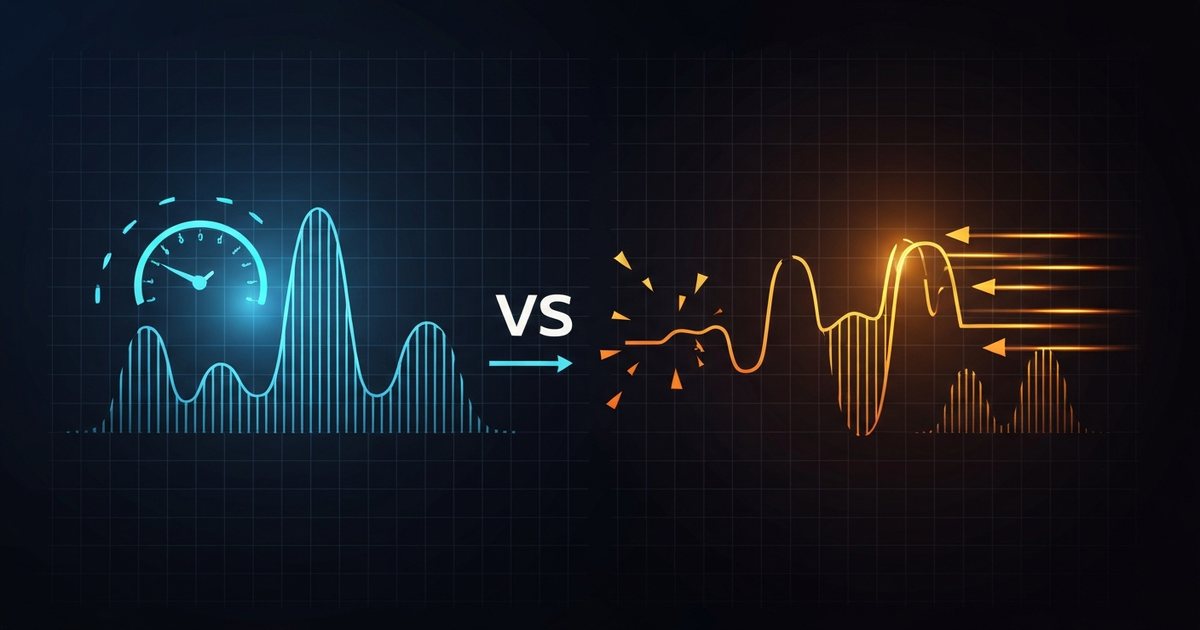
- Jitter is how much your ping varies moment to moment - Lower is better.
- Packet loss is the share of data that never arrives - Zero is the goal.
- Aim for jitter under 30 ms and packet loss under 1%.
- Both measure stability, which speed alone can't reveal.
What is jitter?
Jitter is the variation in your ping over time. If one packet takes 20 ms, the next takes 24 ms and the next 60 ms, your connection is jittery - Even though the average ping might look fine. It's measured in milliseconds, and a lower number means a smoother, more predictable connection.
Real-time applications hate jitter. A voice or video call reassembles packets into a smooth stream using a small buffer; when packets arrive at uneven intervals, that buffer runs dry and you get choppy audio, frozen video and robotic voices. Games feel unpredictable because the delay keeps shifting.
What is packet loss?
Data crosses the internet in small chunks called packets. Packet loss is the percentage of those packets that never reach their destination and have to be re-sent - Or are simply gone. Even a small amount is very noticeable in real-time apps: dropped words on a call, a game character that teleports, a video that stalls.
Common causes include an overloaded or failing router, Wi-Fi interference, a damaged cable, an overloaded connection, or congestion on your provider's network. Unlike a slow speed, packet loss often points to a fault worth chasing down.
What counts as good jitter and packet loss?
| Metric | Excellent | Acceptable | Problem |
|---|---|---|---|
| Jitter | Under 5 ms | 5–30 ms | Over 50 ms |
| Packet loss | 0% | Under 1% | Over 2.5% |
For a flawless video call, you generally want jitter under 30 ms and packet loss under 1%. Competitive gamers should aim even lower. Our speed test reports both alongside your ping.
A test might show 300 Mbps download and 12 ms average ping - Numbers that look excellent - While a jitter of 60 ms and 3% packet loss quietly ruin every call. Always check stability, not just speed.
How to fix jitter and packet loss
- Switch to Ethernet. Wi-Fi is the number-one source of jitter and loss. A cable often clears both up instantly.
- Reduce Wi-Fi interference. Move closer to the router, use the 5 GHz band, and avoid overlapping channels from neighbours.
- Check your cables and router. A frayed cable, loose connector or overheating router can drop packets. Restart the router and replace suspect cables.
- Ease congestion. Pause big downloads and enable QoS to protect real-time traffic.
- Test at different times. If loss only appears in the evening, it's likely provider-side congestion - Report it with test evidence.
- Bypass the VPN for calls and games, since it can add both latency and instability.
If loss persists on a wired connection at all hours, it's worth contacting your provider - Persistent packet loss usually indicates a line or network fault. Our slow-internet checklist walks through the diagnosis.