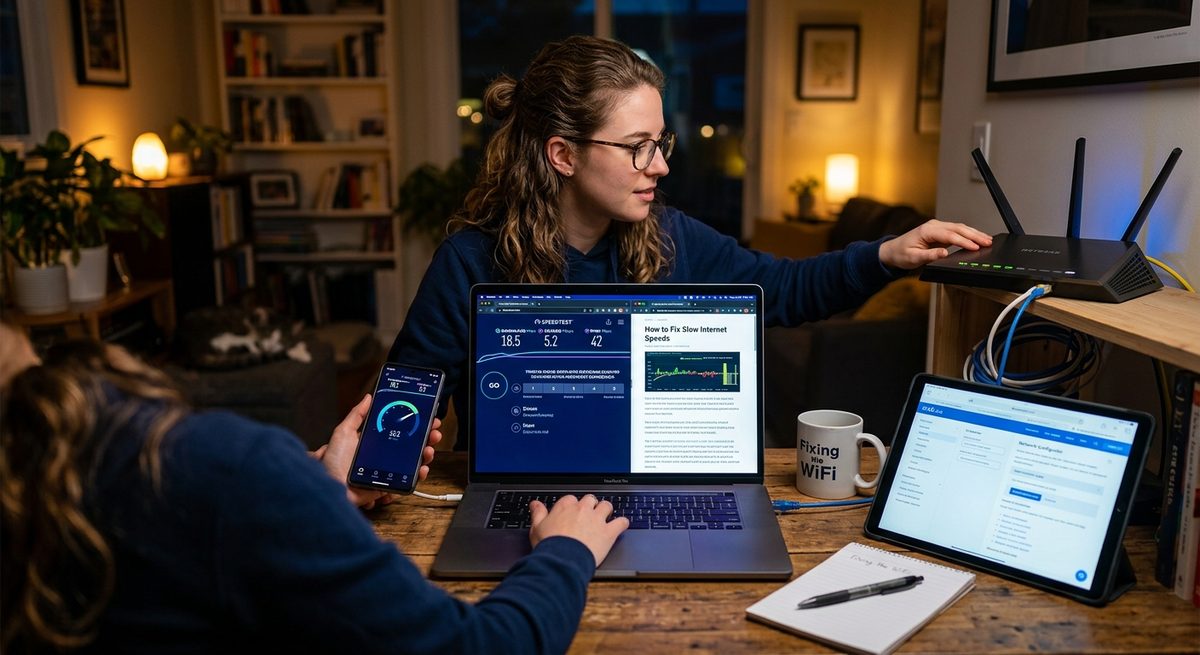
Your internet felt sluggish. You ran a speed test. Now you have a screen full of numbers and no clear idea what any of them mean. That is a frustrating place to be. Speed tests return five different metrics, and each one tells a different story about your connection. This guide walks you through all five in plain language, shows you what counts as good or bad for the things you actually do online, and gives you a concrete plan to fix whatever is falling short. Keep your results open. You will need them.
What This Guide Covers
- A speed test returns five distinct metrics, and each one matters for a different part of your online life.
- What counts as a "good" result depends entirely on how your household uses the internet.
- Most slow-speed problems at home have a fix you can try yourself before calling your provider.
Run the Test First, Then Keep Reading
Before going any further, take 60 seconds to run a fresh internet speed test and leave the tab open. Numbers from a test you ran earlier today may not reflect your current conditions. Network performance shifts throughout the day, and you want a live snapshot. Run it on the device that has been giving you trouble. If your laptop is usually on Wi-Fi, test it on Wi-Fi. If you game on a wired desktop, plug in first, then test.
Before you run it, close any apps that download in the background. Software updates, cloud backups, and streaming services all consume bandwidth while a test runs. They will drag your numbers down in ways that look like ISP problems but are not.
Download Speed: What the Big Number Actually Measures
Download speed is how fast data travels from the internet to your device. It is measured in megabits per second, written as Mbps. This is the headline number your ISP uses in advertising, and it covers the majority of what you do online: streaming video, loading websites, downloading files, and receiving video in calls.
A single 4K stream from Netflix consumes around 25 Mbps. Standard HD streaming sits closer to 5 Mbps per stream. A household with three people watching different shows simultaneously could need 75 Mbps or more just for video, before anyone jumps on a video call or starts a large file download.
The number on your plan is a ceiling, not a guarantee. Real-world speeds almost always fall below the advertised maximum, especially during peak evening hours when neighbors are all online at once. Getting 80 to 90 percent of your plan's advertised speed is considered healthy performance. Consistently getting less than 50 percent is a signal worth investigating.
Why Upload Speed Became Critical for Modern Households
Upload speed is how fast data travels from your device out to the internet. For years, most home users barely thought about it. That changed when video calls and remote work became a daily reality.
Every time you appear on a Zoom or Teams call, send a video to a friend, or back up photos to the cloud, you are drawing on upload bandwidth. A single 1080p video call needs roughly 3 Mbps of upload to stay clear and stable. Two people in the same household on separate video calls at the same time need at least 6 Mbps. If your upload speed falls below that threshold and calls look pixelated or freeze repeatedly, that number is almost certainly your bottleneck.
Cable internet plans are often asymmetric: download speeds are much higher than upload. A plan advertised at 300 Mbps down might only offer 10 to 20 Mbps up. Fiber plans are typically symmetric, delivering equal speeds in both directions. If upload performance matters to your household and your current plan skimps on it, that is worth raising directly with your provider.
Ping: The Metric That Makes or Breaks Real-Time Use
Ping measures latency. That is the time it takes a signal to travel from your device to a server and back, expressed in milliseconds (ms). Lower is always better.
For general browsing and streaming, ping matters very little. Video content buffers ahead of playback, which means a 100ms ping on a Netflix stream is invisible to you. Gaming and voice calls are a different story entirely. Ping under 20ms is excellent. Under 50ms is solid for most online games. Between 50ms and 100ms is acceptable but can cause occasional lag. Above 150ms and you will notice missed inputs, delayed reactions, and voice audio that feels just slightly behind.
If your ping is high only on Wi-Fi but drops sharply when you plug in directly with an Ethernet cable, the problem is your wireless setup. If it stays high on both connections, the issue is upstream from you, either the modem, the router firmware, or your ISP's network.
Jitter and Packet Loss: The Numbers Most People Overlook
Jitter measures how consistent your ping is over time. A ping of 20ms every single measurement is ideal. A ping that swings between 8ms, 52ms, 4ms, and 67ms in rapid succession is high jitter, even if the average looks acceptable on paper. Jitter causes choppy audio on calls, stuttering video, and unstable gameplay. Under 10ms of jitter is excellent. Above 30ms and most people will start noticing problems, even if the average ping appears fine.
Packet loss is even more disruptive. It means some of the data your device sends or receives simply never arrives. A result of 0 percent is what you want. Even 1 to 2 percent can cause audio dropouts and mid-stream buffering pauses. Anything above 3 percent during normal use points to a real problem: a worn cable, a failing modem, wireless interference, or a network fault on your ISP's end that needs a technician.
Speed Benchmarks for Common Household Activities
The numbers below reflect widely accepted performance guidelines for individual activities. Households with multiple users doing these things simultaneously should multiply accordingly to estimate their total need.
Minimum Recommended Speeds by Activity
| Activity | Min. Download | Min. Upload | Ping Sensitivity |
|---|---|---|---|
| HD Streaming (per device) | 5 Mbps | 1 Mbps | Low |
| 4K Streaming (per device) | 25 Mbps | 2 Mbps | Low |
| Online Gaming | 10 Mbps | 3 Mbps | High (under 50ms ideal) |
| Video Calls (1080p) | 5 Mbps | 3 Mbps | Medium |
| Remote Work (full day) | 25 Mbps | 10 Mbps | Medium |
| General Browsing | 5 Mbps | 1 Mbps | Low |
The FCC updated its definition of broadband in 2024 to a minimum of 100 Mbps download and 20 Mbps upload, replacing a standard that had been in place since 2015. Those federal broadband speed thresholds are a useful baseline, but a household of four streaming, gaming, and working simultaneously will typically need considerably more than the minimum to avoid bottlenecks.
What Is Quietly Dragging Down Your Wi-Fi Signal
Before blaming your ISP, consider the wireless environment in your home. Signals degrade in predictable ways, and the following are the most common culprits in a typical US home:
- Distance from the router: Signal strength drops sharply beyond 30 to 40 feet in open space, and much faster through walls and floors.
- Building materials: Concrete, brick, and metal studs block Wi-Fi signals significantly. Drywall causes minimal interference by comparison.
- Competing frequencies: Microwaves, baby monitors, and neighboring Wi-Fi networks can all compete on the same 2.4 GHz band, causing interference that shows up as higher ping and jitter.
- Router placement: A router stuffed in a closet, sitting behind the TV, or flat on the floor will perform measurably worse than one placed on a shelf in a central, open location.
- Aging hardware: A router more than four years old may not support the speeds or band technology your current plan provides, regardless of what your ISP delivers to your modem.
- Device count: Every connected device draws from the same bandwidth pool. Smart TVs, security cameras, and smart home gadgets all take a share even when they appear idle.
Repositioning your router to a higher, more central spot costs nothing and often produces an immediate, measurable improvement. For larger homes or spaces with thick walls, a mesh Wi-Fi system delivers more consistent coverage than a single router ever could.
Troubleshooting Slow Speeds: The Right Order of Steps
Work through these steps before calling your ISP. They address the most common causes first and escalate only when simpler fixes do not solve the problem.
- Restart your modem and router. Unplug both from power, wait a full 60 seconds, then plug the modem in first and the router second. Give each one two full minutes to initialize before testing again. This resolves a surprising number of performance issues.
- Test with a wired connection. Connect a laptop directly to your router using an Ethernet cable and run another speed test. If wired speeds are solid but wireless speeds are not, the issue is your Wi-Fi setup, not your ISP.
- Check for background usage. Other devices performing cloud backups, running updates, or streaming in the background can consume your full bandwidth without any obvious sign. Temporarily disconnect all other devices and test with only your primary device active.
- Reposition the router. Move it to the most central, elevated, open spot available in your home. Keep it away from corners, enclosed cabinets, and large metal appliances.
- Inspect your cables. A frayed or loosely seated coaxial or Ethernet cable between your modem and the wall outlet can introduce packet loss and jitter even when speeds appear normal. Swap cables if you have spares on hand.
- Update your router firmware. Log into your router's admin panel and confirm the firmware is current. Outdated firmware creates stability problems that are invisible from the outside but clearly visible in a speed test.
- Test at different times of day. Run the speed test early in the morning and again during peak evening hours, typically between 7 and 10 PM. A large drop at peak hours points to congestion on your provider's local network rather than anything inside your home.
Recognizing When the Problem Lives Outside Your Home
You have worked through every step above and speeds remain poor. At that point, the issue is most likely outside your home entirely. Here is how to identify it with confidence.
If your wired connection direct to the modem returns speeds well below your plan's advertised rate, the problem is either the modem itself, the line running from the street to your home, or a capacity issue on your provider's local infrastructure. None of those are fixable from your end.
If speeds are consistently low during evening hours but fully normal at 3 AM, your ISP has a congestion problem on shared infrastructure in your area. That is a network capacity issue on their end, and it is their responsibility to address.
Persistent packet loss on a stable, direct wired connection almost always signals a hardware or infrastructure fault somewhere between your modem and your ISP's nearest node. A technician visit is the right next step.
When you call, arrive prepared. Have your test results ready and note the specific time the test ran, the device you used, whether it was wired or wireless, and the exact numbers for each metric. Support teams move faster and more usefully when you hand them specific data rather than a vague description.
From Five Numbers on a Screen to a Connection That Actually Works
Speed test results stop feeling intimidating the moment you understand what each metric is actually measuring. Download speed tells you how much data your household can receive at once. Upload speed reveals how capable your connection is for sending, calling, and working from home. Ping shows how fast your connection reacts. Jitter measures whether that reaction time stays consistent. Packet loss flags whether data is being dropped before it arrives.
Together, those five numbers give you a complete, honest picture of your connection's health. Compare them against what your household genuinely needs using the table above, work through the troubleshooting steps in order, and you will resolve the majority of slow-internet problems without a service call. The numbers are telling you something. Now you know exactly what to listen for.